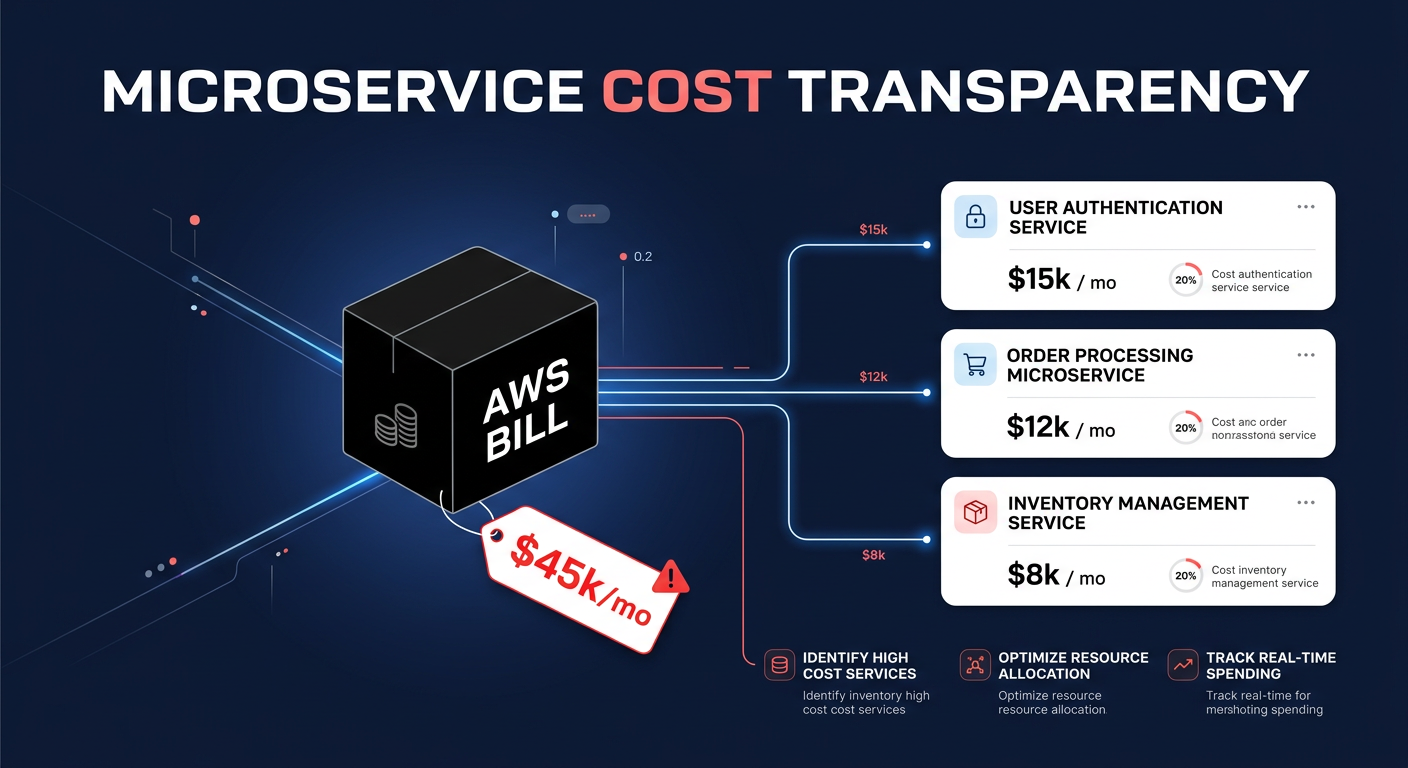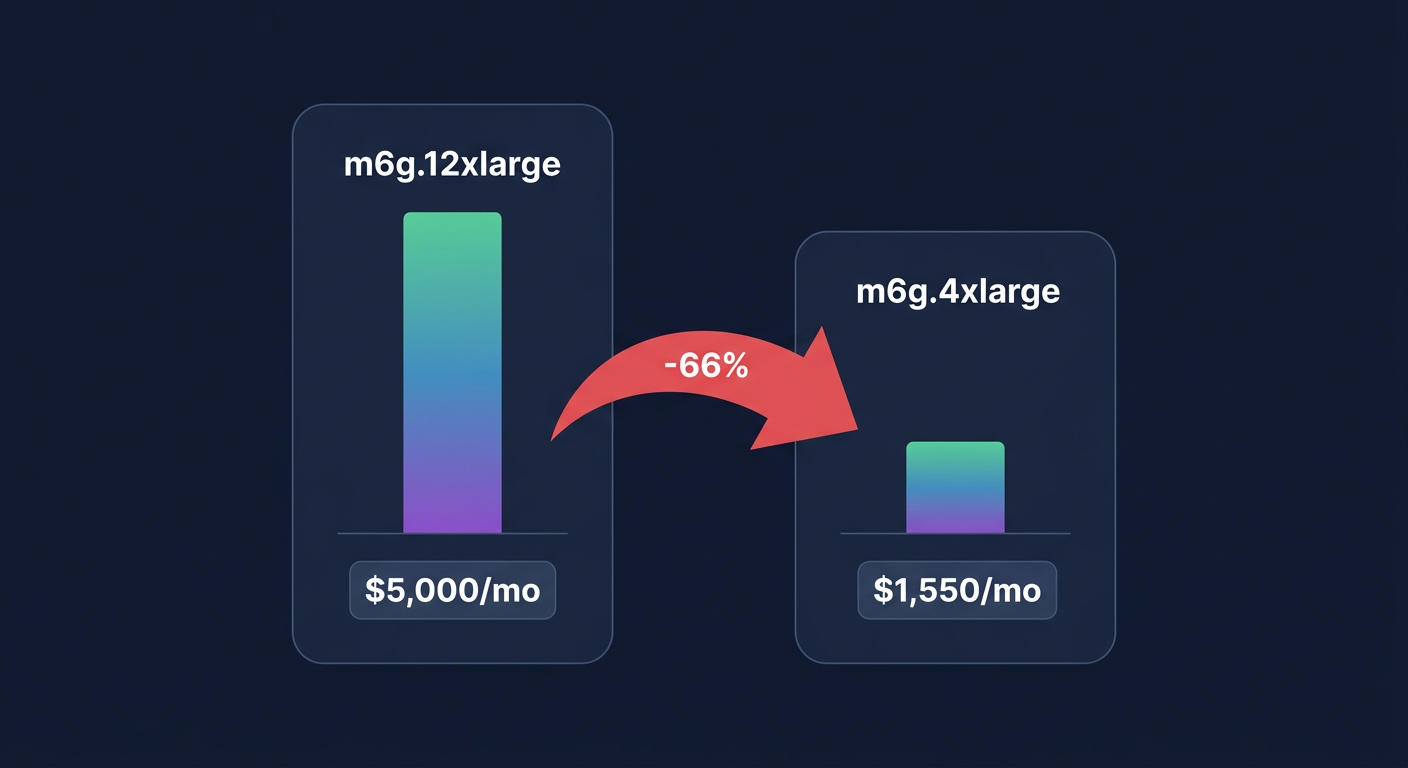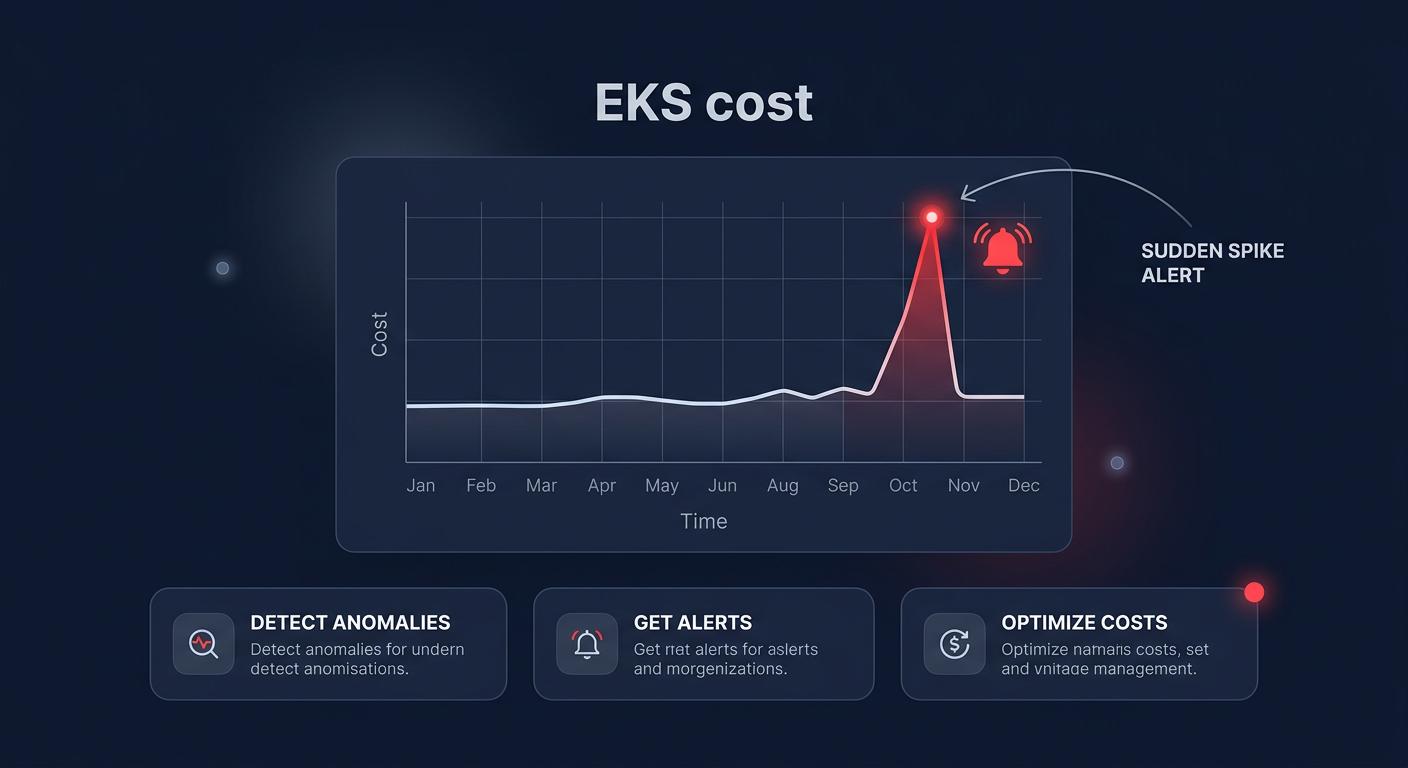
Are you tired of discovering EKS cost spikes only after they’ve hit your monthly invoice? Reactive cost management is a recipe for budget overruns, but configuring proactive Kubecost alerts allows you to catch anomalies before they balloon into five-figure headaches.
Managing kubernetes cost monitoring on AWS requires moving beyond manual reviews. By setting up automated notifications, you ensure that DevOps teams and finance stakeholders are alerted the moment spend deviates from the baseline. Whether you are using the free EKS bundle or choose to upgrade to Kubecost Enterprise for advanced features, implementing a robust alerting strategy is the first step toward reclaiming your cloud budget.
Selecting the right alert types for AWS workloads
Before diving into the user interface, you must define what constitutes a critical change in your environment. Kubecost offers several alert categories, but for AWS-focused teams, three are essential: budget thresholds, cost anomalies, and spend changes. Budget alerts trigger when a specific namespace or label exceeds a fixed dollar amount, while spend change alerts detect percentage shifts over daily or weekly intervals.
For most production environments, a spend change alert of 10–15% serves as a reliable baseline. In development clusters, you might loosen this to 30% to account for the noise of frequent deployments and testing cycles. These alerts rely heavily on kubecost cost allocation for AWS, so ensuring your AWS Cost and Usage Report (CUR) is integrated via Athena is vital for accuracy. Without CUR reconciliation, Kubecost defaults to estimated on-demand pricing, which may ignore your AWS rate optimization strategies like Savings Plans or Reserved Instances.
Configuring budget thresholds and spend alerts
To set up a new notification, navigate to the Alerts tab in your Kubecost dashboard and select the option to create a new alert. You will first choose between an allocation spend change or a standard budget type. If you are monitoring a specific team or project, use the filter settings to target their specific namespace or AWS cost allocation tags.
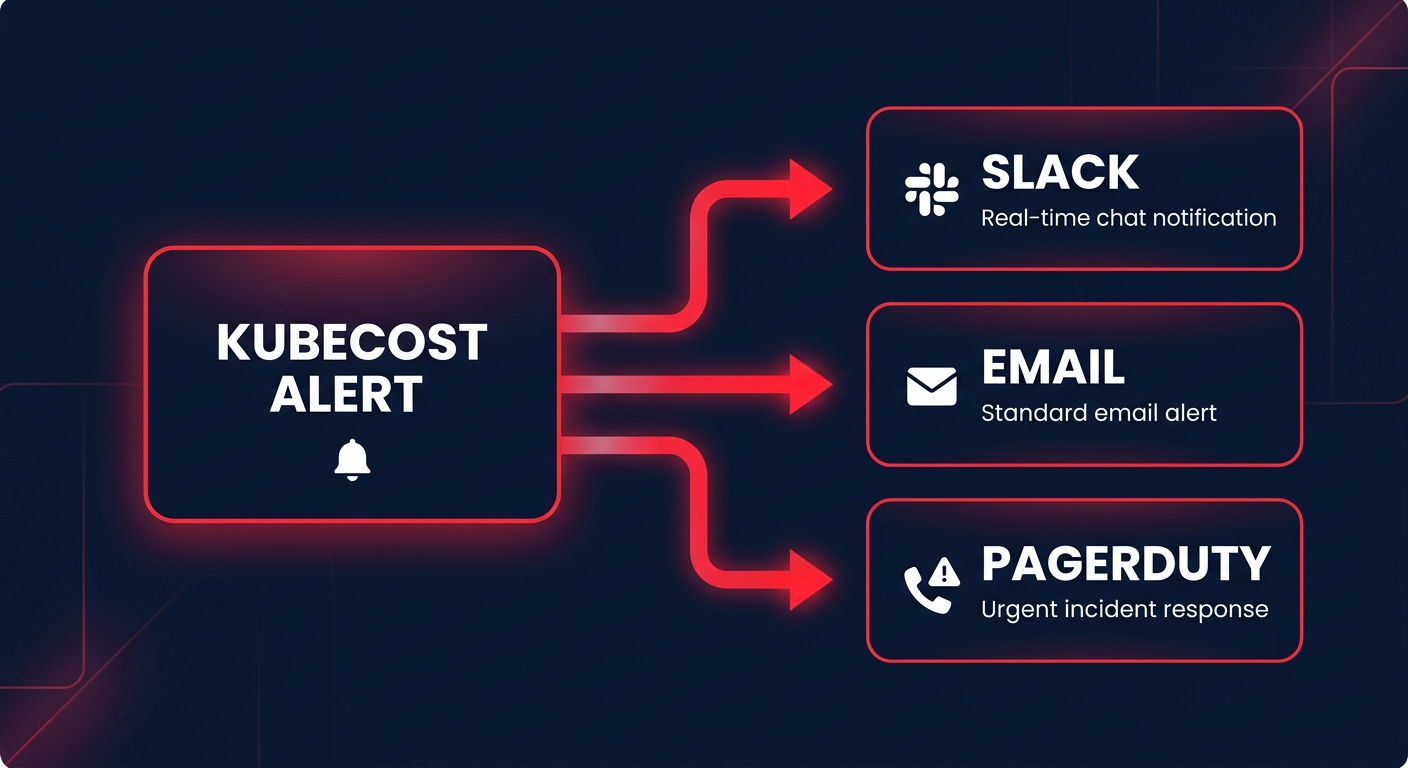
When configuring the threshold, the lookback window is your most important variable. A 7-day window is typically the ideal middle ground for identifying trends without being overwhelmed by minor daily fluctuations. Once you have set your parameters, you can assign a recipient. While email is a standard fallback, high-velocity DevOps teams generally prefer routing these to Slack or PagerDuty for immediate visibility. If you find yourself constantly adjusting these thresholds to avoid false positives, you may benefit from cost anomaly detection automation to handle the technical heavy lifting.
Implementing real-time cost anomaly detection
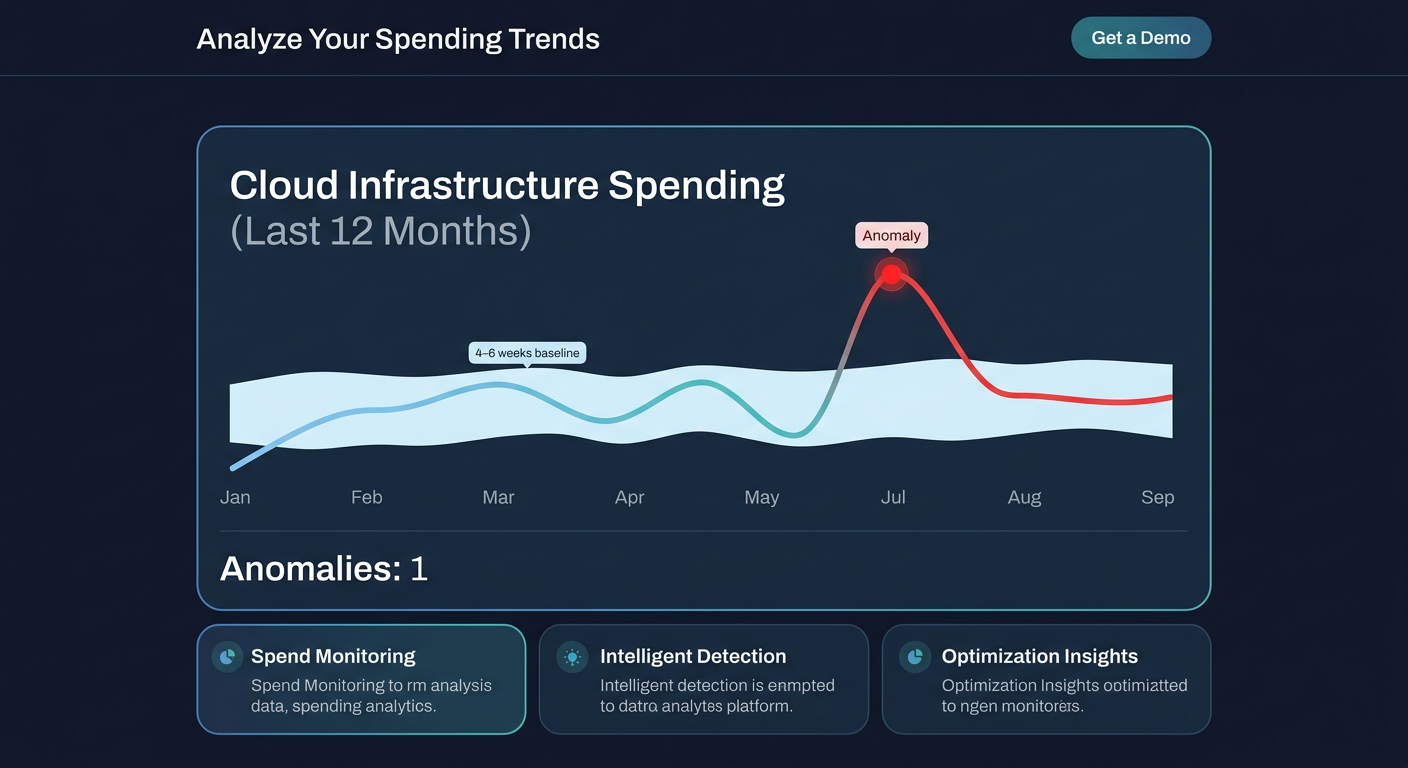
Unlike static budgets, anomaly detection uses machine learning to establish a historical baseline of your spending patterns. This is particularly useful for AWS users who deal with hidden costs like NAT Gateway data transfer or cross-region EBS replication. Kubecost Enterprise analyzes your kubecost architecture and flags deviations that do not fit your typical usage cycle, such as an unexpected spike in CPU consumption or memory leaks.
To make anomaly detection effective, you should allow the system to baseline for at least four to six weeks. This historical data helps the machine learning model distinguish between a legitimate month-end batch processing spike and a misconfigured DaemonSet that is burning through resources. For those managing complex multi-account setups, integrating these alerts with cloud observability tools ensures that cost data is treated with the same urgency as a site outage or performance degradation.
Routing notifications to Slack and email
The value of an alert is nonexistent if it sits unread in an inbox. Kubecost supports webhook integrations that allow you to pipe notifications directly into your existing communication workflows. For Slack, you will need to generate a webhook URL from your workspace settings. Once configured, Kubecost sends a JSON payload containing the cost delta, the affected namespace, and a direct link to the dashboard for rapid root cause analysis.
If you are already utilizing Prometheus Alertmanager, you can route Kubecost alerts through your existing monitoring stack. This allows you to centralize all infrastructure alerts in one location, ensuring that your Site Reliability Engineers (SREs) see a cost spike in the same context as a CPU saturation event. This level of solutions-oriented monitoring is what separates efficient FinOps teams from those who are constantly playing catch-up with their AWS bill.
Tuning alerts to eliminate noise
The biggest pitfall in any alerting system is alert fatigue. If your team receives a notification for every minor fluctuation, they will eventually ignore the alerts that signal a major overrun. To prevent this, you should implement a minimum spend threshold – for example, only alert on anomalies that represent at least $50 of daily impact.
- Start with looser thresholds (20-30%) and tighten them as you establish a stable baseline.
- Exclude development namespaces that exhibit high volatility to focus on production stability.
- Use specific team tags to ensure alerts reach the correct resource owners immediately.
- Review your alert history weekly to identify and tune recurring false positives.
Regularly reviewing your alert history helps you identify patterns that may not be anomalies at all. Often, a cost spike is simply an expected result of scaling for a marketing event or a scheduled data migration. By refining your filters and sensitivity settings, you turn Kubecost from a noisy monitor into a precision instrument.
Managing these thresholds and responding to alerts still requires significant engineering hours. If you would rather put your savings on autopilot, Hykell can optimize your AWS infrastructure automatically. We dive deep into your EC2, EBS, and Kubernetes spend to uncover hidden efficiencies, often reducing bills by up to 40%. Best of all, we only take a slice of what you save – if you do not save, you do not pay.
Find out exactly how much you could be saving by using the Hykell savings calculator or contact us today to start your automated cost audit.