Skip to content

How to remove AWS Compute Optimizer and use it for Lambda cost optimization

Ott Salmar
Ott Salmar
Co-Founder | Hykell

A single misconfigured automation rule in AWS Compute Optimizer can silently rack up thousands of dollars in wasted cloud spend before anyone notices. AWS Compute Optimizer is a recommendation engine that analyzes CloudWatch metrics and historical usage data to suggest optimal configurations for your EC2 instances, EBS volumes, Lambda functions, and other resources. But here’s the catch: those recommendations don’t implement themselves, and if you’re not actively managing the service – or if you’ve enabled automation without proper guardrails – you might be paying for recommendations you never act on or changes you never intended.

Understanding how to properly disable Compute Optimizer at the account or Organization level, configure its automation rules, and leverage its Lambda-specific recommendations can mean the difference between systematic cost control and runaway cloud expenses. This guide walks through both removing the service when it’s not serving your needs and using it strategically for Lambda optimization when it is.

Diagram showing AWS Compute Optimizer pathways from misconfigured automation to well-governed guardrails and configuration for cost control.

What AWS Compute Optimizer does (and what it doesn’t)

AWS Compute Optimizer uses machine learning to analyze resource utilization patterns over at least 14 days of CloudWatch metrics. It then generates recommendations to right-size your compute resources: identifying over-provisioned instances running at low utilization, under-provisioned resources that might throttle or crash, and optimized configurations that already match their workloads. Compute Optimizer identifies 20-30% of volumes as candidates for optimization by examining historical usage data across your AWS environment.

For Lambda functions specifically, Compute Optimizer evaluates memory allocation against execution duration, invocation patterns, and performance metrics. Since Lambda charges by GB-seconds (memory × duration), the service suggests memory configurations that balance cost and performance. A function might run 10 seconds at 128MB or 3 seconds at 512MB – the second configuration uses more memory but finishes faster, potentially costing less overall while delivering better latency.

What Compute Optimizer doesn’t do: it doesn’t automatically implement recommendations unless you explicitly enable automation rules. It doesn’t optimize for factors beyond memory and compute sizing, such as choosing cheaper regions, implementing batching patterns, or migrating to Graviton processors. And it doesn’t scale well for manual management – reviewing, testing, and deploying recommendations across hundreds of resources becomes a bottleneck fast. That’s where knowing when to disable the service or supplement it with automated optimization platforms becomes critical.

Disabling AWS Compute Optimizer at the account level

If Compute Optimizer isn’t delivering value – perhaps you’re using third-party cost optimization tools or managing recommendations through your own processes – disabling it at the account level stops data collection and deletes existing recommendations. The AWS Console doesn’t support account-level opt-out; you must use the AWS CLI.

Run this command to disable Compute Optimizer for your individual account:

Terminal window
aws compute-optimizer update-enrollment-status --status Inactive

This command immediately stops Compute Optimizer from analyzing your resources and deletes all account recommendations and related metrics data. The service ceases generating new recommendations within minutes, though some residual data processing may take slightly longer to fully halt.

If your account is part of an AWS Organization, disabling Compute Optimizer in your individual member account only affects that specific account. Each member account must individually disable the Compute Optimizer feature at the account level. Disabling it in the Organization’s management account does not cascade to member accounts – each account owner retains independent control over their Compute Optimizer enrollment status.

Removing AWS Compute Optimizer from an AWS Organization

Disabling Compute Optimizer at the Organization level requires different steps than account-level opt-out. This process controls how the management account accesses and manages recommendations across all member accounts in the Organization. Only an administrator in the AWS Organizations management account can disable trusted access with AWS Compute Optimizer.

When you disable trusted access, the management account loses the ability to view recommendations or manage automation for Organization member accounts. To disable trusted access via the AWS Organizations CLI, use this command:

Terminal window
aws organizations disable-aws-service-access --service-principal compute-optimizer.amazonaws.com

You can also use the Organizations API operation for the same result. After disabling trusted access, the service-linked role AWSServiceRoleForComputeOptimizer remains in your accounts but can only be deleted or modified once trusted access is fully disabled or the member account is removed from the Organization. If trusted access is disabled after opting in, Compute Optimizer denies access to recommendations for Organization member accounts.

To re-enable Compute Optimizer for your Organization later, the management account must opt in again and explicitly include all member accounts you want covered. Member accounts within an Organization aren’t automatically opted in to Compute Optimizer – each account requires explicit enrollment, even after trusted access is enabled.

Controlling automation without removing the service

Before fully disabling Compute Optimizer, consider adjusting the Organization rule mode instead. This setting determines whether the management account can implement automated optimization actions on behalf of member accounts, allowing you to retain visibility and recommendations while preventing unwanted automation.

Organization rule mode offers two options: “Any Allowed” (the management account can act on member accounts) or “None Allowed” (only the member account itself can act on its own resources). When you change the mode to “None Allowed,” any in-progress automation steps continue to completion, but no new automation steps are triggered.

To configure organization rule mode, navigate to the Compute Optimizer console, select Account management, go to the Automation tab, select the accounts you want to modify, and choose either “Allow organization rules” or “Disallow organization rules.” This granular control means you don’t face an all-or-nothing decision. You can keep Compute Optimizer running for visibility and recommendations while preventing it from making automated changes – particularly useful during cloud migrations or when you’re testing alternative optimization strategies.

This approach works well for organizations that want to centrally monitor optimization opportunities across member accounts without implementing changes until local teams review and approve them. It provides the transparency of Compute Optimizer recommendations while preserving each team’s autonomy over their infrastructure changes.

Disabling individual automation rules

If you want to keep Compute Optimizer active for recommendations but stop specific automation features, you can disable or delete individual automation rules without fully opting out of the service. Disabling Automation stops all automation rules in the account, but you can be more selective by managing rules individually.

To disable or delete specific automation rules, navigate to the Compute Optimizer console, select the automation rule you want to modify, choose “Actions,” and select either “Delete” or “Disable.” Deleting a rule permanently removes all configuration and history, while disabling preserves the rule definition but prevents it from executing. This distinction matters when you’re testing optimization strategies or want to maintain rule configurations for potential future use without active execution.

Disabling automation differs from opting out of the service entirely. Disabling automation preserves your recommendations, historical data, and visibility into optimization opportunities – you simply stop Compute Optimizer from making automated changes. Opting out deletes everything, including metrics and recommendations. If you’re uncertain about your long-term optimization strategy, start by disabling automation rather than completely removing Compute Optimizer. You retain the data and insights while eliminating the risk of unwanted automated changes to your infrastructure.

Using Compute Optimizer for Lambda memory optimization

While Compute Optimizer covers EC2, EBS, and other services, its Lambda recommendations address a specific cost driver: memory configuration. Lambda pricing operates on a GB-seconds model: memory allocation multiplied by execution duration. Many engineering teams overprovision Lambda memory out of caution, but higher memory allocations also provide proportionally more CPU power. A function with more memory might execute faster, potentially offsetting the higher per-second cost.

Infographic of an AWS Lambda function with sliders illustrating the trade-off between memory allocation, performance, and cost.

Compute Optimizer analyzes at least 14 days of CloudWatch metrics – invocation counts, duration, memory utilization, errors, and throttles – to recommend optimal memory settings for each Lambda function. The service categorizes functions as over-provisioned (using less memory than allocated), under-provisioned (running close to memory limits and risking throttles), or optimized (sized correctly for the workload).

For example, a function running 10 seconds at 128MB consumes 1.25 GB-seconds. The same function might complete in 3 seconds at 512MB, consuming 1.5 GB-seconds. The higher memory configuration costs slightly more (20% increase in GB-seconds) but delivers 70% faster execution. Whether this trade-off makes sense depends on your latency requirements, invocation volume, and whether faster execution enables downstream optimizations. Lambda cost reduction techniques often involve finding these memory-performance sweet spots function by function.

The key is understanding that Compute Optimizer provides data-driven recommendations based on actual usage patterns, not theoretical capacity planning. A function consistently using 40MB of its allocated 512MB is a clear over-provisioning candidate. A function spiking to 95% memory utilization might need more headroom to avoid out-of-memory errors.

Accessing and interpreting Lambda recommendations

To view Lambda recommendations in Compute Optimizer, navigate to the AWS Compute Optimizer console and select “Lambda functions” from the left menu. The recommendation table displays your current memory allocation, suggested memory configuration, estimated monthly savings, and projected performance impact for each function with sufficient historical data.

Pay attention to the confidence level indicated for each recommendation. High-confidence recommendations are backed by substantial usage data and clear optimization patterns – these are your safest candidates for immediate implementation. Low-confidence recommendations may require additional analysis before you make changes. Don’t blindly accept every suggestion without cross-referencing recommendations against your application’s actual performance requirements, error budgets, and business logic constraints.

The estimated savings assume you maintain the same invocation volume, so if your Lambda usage is growing or seasonal, factor that into your evaluation. A recommendation showing $50 monthly savings might actually represent $200 quarterly savings during peak seasons, making it a higher priority than the monthly estimate suggests.

Functions marked as over-provisioned are your best candidates for immediate cost savings through memory reduction. Functions marked as under-provisioned need careful attention – while you might save money by reducing invocations through batching or other architectural changes, simply reducing memory on an under-provisioned function will likely cause errors or throttling. Compute Optimizer helps you find the optimization opportunities, but you still need to understand your application’s behavior to implement changes safely.

Testing and deploying Lambda optimizations

Once you’ve identified optimization opportunities, don’t deploy memory changes directly to production. Start by creating a test version of your Lambda function with the recommended memory configuration and running your standard test suite to verify performance remains acceptable and error rates stay stable. Use Lambda versioning and aliases to gradually roll out changes rather than switching all traffic instantly.

Monitor these key metrics after implementing changes: execution duration (should remain stable or improve), error rate (must not increase – any uptick suggests under-provisioning), throttling (should remain at zero), and cost per invocation (should decrease). If you notice performance degradation, try a middle-ground memory allocation between your current setting and the Compute Optimizer recommendation rather than reverting entirely.

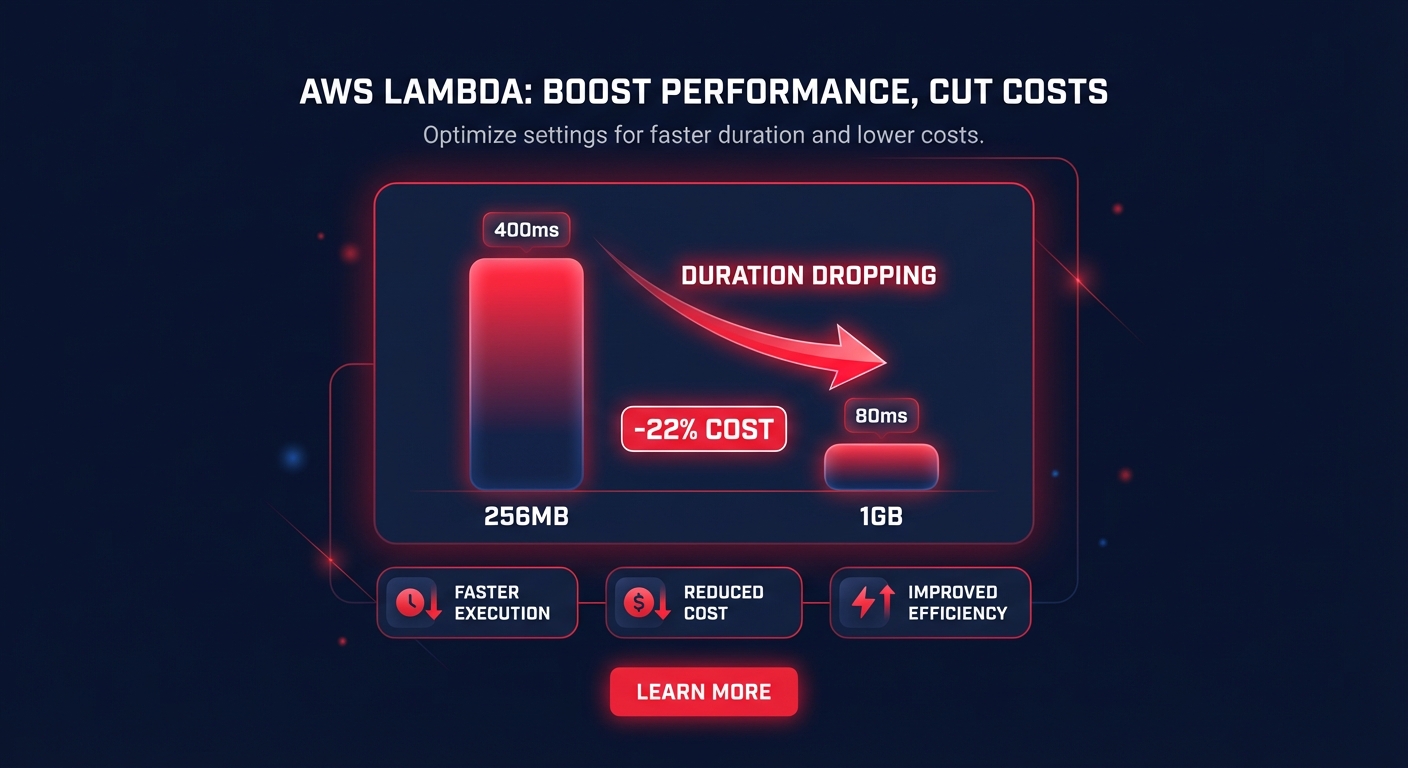
Real-world optimization patterns demonstrate the potential savings. An e-commerce company changed an order processing function from 256MB with 400ms duration to 1GB with 80ms duration, producing a 22% cost reduction despite the 4x memory allocation – faster execution more than compensated for higher memory cost. A media company moved a log processing function from handling one log per invocation to batching 10 logs per invocation, achieving an 87% reduction in invocation costs and a 32% overall Lambda cost reduction.

For high-volume functions, even small percentage optimizations translate to significant monthly savings. A function running 10 million invocations per month with a 20% cost reduction saves real money that compounds across your entire Lambda estate. Multiply that across dozens or hundreds of functions, and you’re looking at substantial budget reductions without any performance compromise.

Monitoring and continuous optimization

AWS Compute Optimizer continuously analyzes your resources, so recommendations update as usage patterns change. Set a regular cadence – monthly or quarterly – to review new recommendations and assess whether previously implemented optimizations remain valid as your application evolves. Traffic patterns shift, features launch, and workloads grow; what was optimal six months ago might no longer be the best configuration today.

Combine Compute Optimizer recommendations with CloudWatch alarms tracking key Lambda metrics: duration spikes (indicating potential performance issues), invocation anomalies (unusual traffic patterns that might require investigation), and error-rate increases (signs of under-provisioning or code defects). CloudWatch Lambda Insights provides deeper visibility into function performance and cost drivers beyond what Compute Optimizer surfaces.

Tag your Lambda functions consistently with identifiers like “Department,” “Project,” and “Environment” to enable accurate cost attribution and track optimization impact by team or workload. This tagging discipline supports automated cost monitoring across your infrastructure using AWS cost monitoring tools and helps you quantify which optimization efforts deliver the highest ROI for different parts of your organization.

Successful teams implement systematic responses to optimization opportunities rather than ad-hoc reviews. One enterprise customer reduced their monthly cloud bill by 43% by automating responses to AWS KPIs including Compute Optimizer recommendations, maintaining performance throughout the process. The difference between occasional manual reviews and continuous automated optimization compounds over time – small incremental improvements add up to significant savings.

When manual Compute Optimizer management doesn’t scale

While AWS Compute Optimizer provides valuable recommendations, acting on them manually becomes a full-time job beyond a handful of functions. If you’re managing 50+ Lambda functions across multiple environments and AWS accounts, reviewing and implementing recommendations consumes more engineering time than the cost savings justify. You’re always reacting to past data rather than proactively optimizing.

Compute Optimizer also focuses exclusively on memory configuration for Lambda. It doesn’t address other critical cost factors: choosing the right runtime and architecture (Graviton2 ARM instances offer approximately 20% cost savings over x86), implementing batching patterns to reduce invocation counts, optimizing for cold start performance, or aligning memory with CPU-bound versus I/O-bound workload characteristics. These additional optimization vectors often yield larger savings than memory tuning alone.

The service provides recommendations but offers no automation for implementation. Every suggestion requires manual review, testing, deployment, and monitoring – multiplied across every function, every environment, and every AWS account. Organizations with hundreds of Lambda functions quickly find that the time investment required to act on recommendations exceeds the value delivered, especially when factoring in opportunity cost from engineers spending time on optimization instead of building features.

Native AWS tools typically require significant ongoing effort to extract value. Most organizations discover 30-40% in immediate savings opportunities during initial audits, but realizing those savings through manual implementation takes months. Without automation, optimization becomes a project that competes with product roadmaps rather than a continuous process that runs in the background.

Automated Lambda optimization at scale

If you’re operating at scale – more than 50 Lambda functions, multiple AWS accounts, or high monthly Lambda spend – automated optimization platforms deliver better results with less effort than manual Compute Optimizer management. These platforms analyze your Lambda estate holistically, identifying optimization opportunities across functions and automatically implementing changes that maintain performance while reducing costs.

Grid of multiple AWS Lambda functions labeled with optimization states, representing automated Lambda savings at scale.

Hykell provides continuous memory configuration optimization, timeout right-sizing, idle function detection, and architecture recommendations including Graviton2 migration. The platform addresses multiple cost factors simultaneously: memory sizing, batching strategies, runtime selection, and architecture choices. This multi-vector approach typically achieves up to 40% savings on Lambda costs through systematic optimization that adapts to changing usage patterns without manual intervention.

The economic model aligns incentives. Hykell’s pay-from-savings pricing means you only pay a percentage of actual savings – if you don’t save, you don’t pay. This removes the risk of investing in optimization tools that don’t deliver measurable results and ensures the platform succeeds only when it delivers real cost reductions to your AWS bill.

Automated platforms also integrate optimization across your broader AWS infrastructure. Lambda costs rarely exist in isolation – they’re part of architectures that include EC2 instances, EBS volumes, RDS databases, and other services. Optimizing Lambda in context with your entire environment often reveals opportunities that service-specific tools like Compute Optimizer can’t surface, such as restructuring data flows to reduce Lambda invocations or migrating workloads between services based on cost-performance characteristics.

Making the decision: disable, configure, or automate

Whether you should disable Compute Optimizer, configure it selectively, or supplement it with automation depends on your scale, engineering capacity, and optimization goals. For teams managing fewer than 20 Lambda functions with low invocation volumes, manual Compute Optimizer reviews might suffice – set a quarterly calendar reminder to review recommendations and implement the highest-impact changes.

For organizations running 20-100 Lambda functions or spending $5,000-$20,000 monthly on Lambda, configure Compute Optimizer to provide recommendations but disable automation. Review recommendations quarterly, implement changes in batches, and track savings over time to build a business case for more sophisticated optimization approaches as your Lambda estate grows.

For enterprises with 100+ Lambda functions, multi-account AWS Organizations, or monthly Lambda spend exceeding $20,000, manual optimization doesn’t scale economically. The engineering time required to review, test, and deploy recommendations across your estate exceeds the value delivered. Automated cost optimization platforms become essential at this scale, delivering continuous optimization without diverting engineering resources from product development.

Calculate your optimization labor cost honestly: hours spent reviewing recommendations, testing configurations, deploying changes, and monitoring results, multiplied by your engineering cost per hour. If that labor cost approaches or exceeds the savings you’re achieving, automation delivers better ROI. Most organizations reach this inflection point between 50-100 Lambda functions, though high-volume environments reach it sooner.

Start with visibility, progress to automation

Begin by auditing your current Lambda spend using AWS Cost Explorer to identify your highest-cost functions. Enable AWS Compute Optimizer if it’s not already active and let it collect at least 14 days of metrics to generate baseline recommendations. This visibility costs nothing and establishes a benchmark for measuring future optimization impact.

Calculate the potential savings from Compute Optimizer recommendations and estimate the engineering hours required to implement them across your Lambda estate. If the time investment looks substantial relative to the savings – or if you’re already struggling to keep up with manual optimization – consider automated optimization platforms that deliver better results with zero ongoing engineering effort.

For teams committed to manual optimization, implement the highest-impact changes first: over-provisioned functions with high invocation volumes offer the best return on effort. Establish continuous monitoring to ensure optimizations remain valid as usage patterns evolve, and set quarterly reviews to catch new optimization opportunities before they accumulate into significant waste.

The key is moving from reactive cost management – responding to budget alerts after overspending occurs – to proactive, systematic optimization that prevents waste before it hits your bill. Whether you choose manual optimization for smaller Lambda estates or automated platforms for scale, consistent execution compounds savings quarter over quarter, freeing budget for innovation rather than waste.